How to Choose a Computer Monitor in 2026?
Choosing a Computer Monitor in 2026 requires more than chasing the highest resolution. Your desk, graphics hardware, lighting, and daily habits all influence the right decision. A 27-inch 4K screen may look wonderfully sharp, yet it can feel cramped for split-screen work. A 32-inch model may offer comfort, but it demands more desk depth.
Raymond Soneira, founder of DisplayMate Technologies, has emphasized, “The display is the most important component of a computer.” That principle still matters. Your monitor remains in front of your eyes for hours, unlike many internal components. Therefore, this guide examines panel technology, refresh rate, response time, HDR performance, color accuracy, connectivity, ergonomics, and power use. These specifications can look impressive on a product page. They do not always describe real performance.
Look closely. Test photos, text, motion, and dark scenes when possible. A fast gaming panel may show distracting backlight bleed. A color-focused screen may feel less responsive during competitive play. No choice is perfect. I have made that mistake. I once valued resolution above comfort, then noticed neck strain after long editing sessions.
Reliable decisions also require context. Check independent measurements, warranty terms, return policies, and firmware support. Marketing language deserves caution. “HDR-ready” does not guarantee convincing highlights or deep blacks. This introduction will help you connect technical specifications with actual use, so your next Computer Monitor supports your eyes, workflow, and budget.
Define Your Monitor Use Case: Office, Gaming, Creation, or Hybrid Workflows
How to Choose a Computer Monitor in 2026?
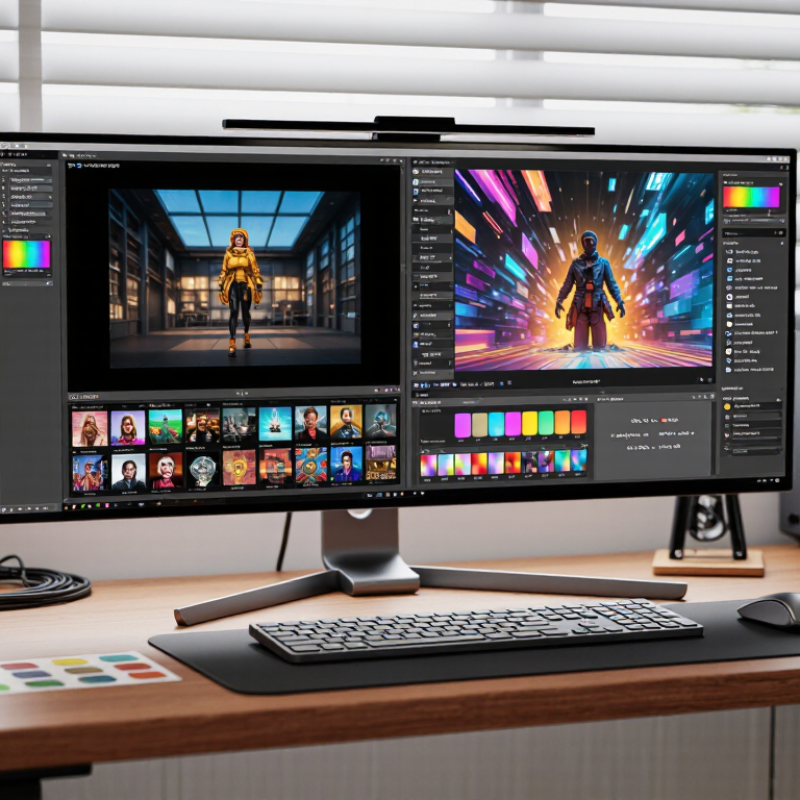
Your monitor should match your real workflow, not an imagined one. Office users need readable text, comfortable brightness, and adjustable ergonomics. A 27-inch panel with sharp resolution usually suits documents, spreadsheets, and video meetings. IDC’s 2024 Worldwide Quarterly PC Monitor Tracker reported global shipments above 120 million units, showing how broad this market has become. Size alone does not guarantee comfort. Poor positioning can still cause neck and eye strain.
Gaming requires more than a high refresh rate. Newzoo’s 2024 Global Games Market Report estimated 3.42 billion players worldwide. Fast response, adaptive synchronization, and low input delay matter during competitive play. Creation work demands consistent color, wide gamut coverage, and uniform brightness. Check measured results, not only advertised specifications. Hybrid users may need one balanced display, or two specialized screens. That decision depends on desk space, software, and budget. I still find “one monitor for everything” slightly optimistic.
Tips: Measure your desk first. Keep the screen near arm’s length. For office work, prioritize text clarity and height adjustment. For gaming, test motion performance at your target frame rate. For photo or video work, request an independent color report. Compare power consumption too. The International Energy Agency continues to identify efficient electronics as important for reducing household energy demand. A display that looks perfect in a showroom may feel tiring after six hours. Test it carefully.
Match Screen Size and Resolution Using Pixel Density Above 100 PPI
How to Choose a Computer Monitor in 2026?
Pixel density should guide your monitor choice more than screen size alone. A larger panel does not automatically provide a sharper image. Calculate PPI by dividing the diagonal pixel count by the screen’s diagonal size. A 27-inch, 2560 × 1440 monitor delivers about 109 PPI. A 32-inch, 3840 × 2160 monitor reaches roughly 138 PPI. Both exceed the practical 100 PPI threshold.
The difference is visible at a normal desk distance. Text looks cleaner, spreadsheet lines appear more defined, and small interface icons need less visual effort. IDC’s Worldwide Quarterly PC Monitor Tracker recorded approximately 30.2 million monitor shipments in the second quarter of 2024, up 5.8% year over year. That growth reflects continuing demand for larger and higher-resolution displays. Yet resolution alone can mislead. A 32-inch 2560 × 1440 screen falls near 92 PPI, which may look soft beside a 27-inch 1440p panel.
Use 100 PPI as a starting point, not a strict law. Viewing distance, operating-system scaling, eyesight, and work type change the experience. For example, 4K at 32 inches often benefits from 125% or 150% scaling. I once chose a dense panel and ignored scaling compatibility. The image was sharp, but menus felt awkward. My mistake. Check the actual PPI, then test text at your usual desk distance. Higher density is valuable only when the interface remains comfortable.
Select Refresh Rates from 60 Hz to 240 Hz+ for Motion Clarity
Choosing a monitor in 2026 starts with motion, not screen size. Refresh rate measures how often the panel updates each second. A 60 Hz display refreshes 60 times per second. At 120 Hz, movement appears more continuous, especially during fast camera turns or scrolling. The jump from 60 Hz to 120 Hz is usually obvious. The move from 120 Hz to 240 Hz feels subtler. It still matters in competitive games. Less so for documents.
International Data Corporation’s 2024 PC Monitor Tracker identified gaming displays as a major growth segment, reflecting stronger demand for faster panels. However, refresh rate only helps when your computer produces enough frames. A 240 Hz monitor cannot create 240 frames from a 70-frame game. It may still reduce visible persistence, but the benefit becomes limited. Check actual frame rates first. I sometimes overbuy here.
Video Electronics Standards Association testing guidance also emphasizes variable-refresh performance, not headline frequency alone. Look for a wide adaptive range, stable operation, and low refresh-rate flicker. A practical choice is 100–165 Hz for office work, editing, and casual gaming. Choose 240 Hz or higher when your system regularly exceeds 200 frames per second. Keep response time measurements realistic. Advertised figures may use ideal settings. Read independent test reports, then watch for overshoot, uneven brightness, and motion blur. Numbers can mislead. Motion should look clean in your own games and applications.
Verify Color Coverage: 99% sRGB, 90% DCI-P3, or Wider Gamut
How to Choose a Computer Monitor in 2026?
Color coverage should match your actual work, not just impress you on a specification sheet. A monitor with 99% sRGB can display nearly the full standard web color range. It is often a sensible choice for documents, websites, education, and general office use. DCI-P3 covers a broader range, especially in reds and greens. A 90% DCI-P3 display may suit video editing, digital photography, and modern content creation better. “Wider gamut” sounds attractive, but the phrase is incomplete without a measured percentage and named color space.
Look beyond coverage numbers. Ask whether the monitor includes a calibration report, stable brightness, and useful adjustment controls. A colorimeter can reveal errors that your eyes miss after a long work session. Software support matters too. Some applications manage wide-gamut color correctly, while others may show excessive saturation. Skin tones can look unnaturally orange, and a green leaf may appear almost fluorescent. That is not always a quality improvement.
I once preferred a wider gamut because the colors looked more vivid in a showroom. That was a mistake. My uncalibrated photos looked rich on screen but dull on another display. Since then, I check real images, neutral gray gradients, and shadow details before choosing. I also reduce brightness to match the room, because an overly bright panel can hide subtle tonal problems. Coverage helps, but accuracy, consistency, and workflow compatibility matter more than a bigger percentage.
Check HDR and Connectivity: DisplayHDR 400+ and HDMI 2.1 at 48 Gbps
When choosing a computer monitor in 2026, check HDR performance before chasing resolution. DisplayHDR 400 or higher provides a useful starting point, but the number is not the whole story. HDR 400 can improve highlights, yet dark scenes may still look gray without strong contrast or local dimming. Ask for measured brightness, black levels, and color coverage. Store demos often use dramatic footage. Your desk may reveal different results.
Connectivity matters just as much. HDMI 2.1 with 48 Gbps bandwidth can handle demanding combinations of high resolution, high refresh rate, and HDR. Confirm that the monitor’s port supports the full bandwidth, not only the HDMI 2.1 label. Check your computer’s output, too. A fast monitor cannot create bandwidth that the graphics hardware lacks. Use a certified cable with enough length for your setup. I once reused an older cable and saw intermittent black screens during gaming. It looked like a monitor fault. It was not.
Look for adaptive sync, reliable audio return, and a practical USB hub. These features reduce desk clutter. Test every port before keeping the monitor. Also inspect HDR switching in your operating system; some screens make desktop text appear dull. Specifications guide the purchase, but hands-on testing exposes weaknesses. I would not treat DisplayHDR 400 as premium HDR. It is a baseline, and sometimes a disappointing one.